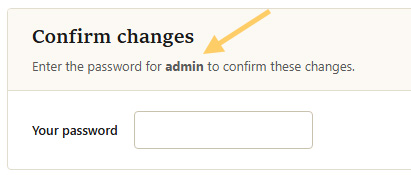

User Privileges
Click the
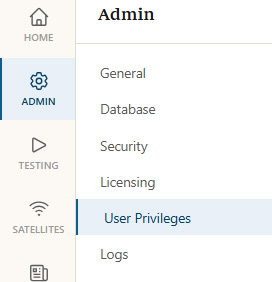
Add or Modify
To modify a user, click the modify link next to that user. To add a new user, click the button at the bottom of the users table. There is also a quick link in the related topics section next to the title.
User Settings
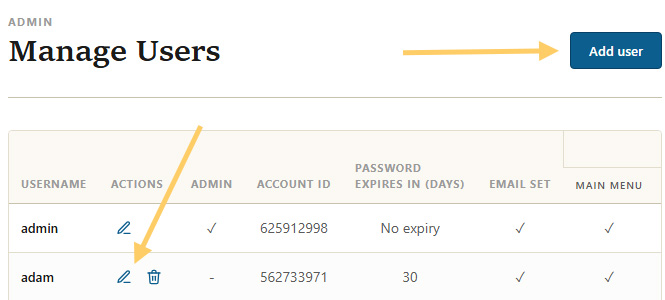
The user settings page is split into numerous sections, which are explained below.
Username and Password
Enter a unique username and a password that matches the criteria. The password criteria can be changed in MCS security settings.
Enter a unique email address (the same email address can't be assigned to multiple users). The email address is used for features like forgotten passwords and two factor authentication.
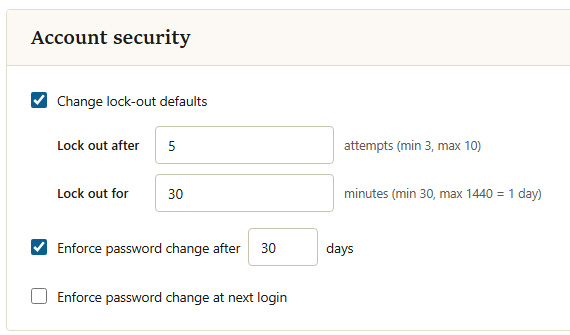
Additional Security
Change lock out defaults: Define how many attempts the user has to login and, if exceeded, how long they are locked out for.
Enforce password change: Set a number of days for password expiry. If a user's password expires they are required to change it at next login.
Enforce password change at next login: Check this box to enforce a change of password regardless of remaining expiry days.
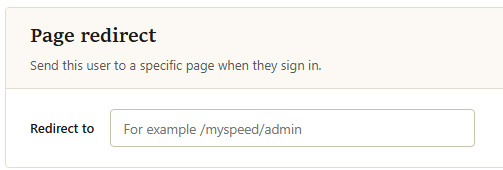
Page Redirect
When set, this feature redirects users to a specific page in MCS upon login. For example, if a user is primarily tasked with reviewing data, a URL related to viewing data can be specified. Upon login, they will be taken directly to that URL.
Privileges
Select the privileges the user should have. An explanation of each privilege can be found in the table below.
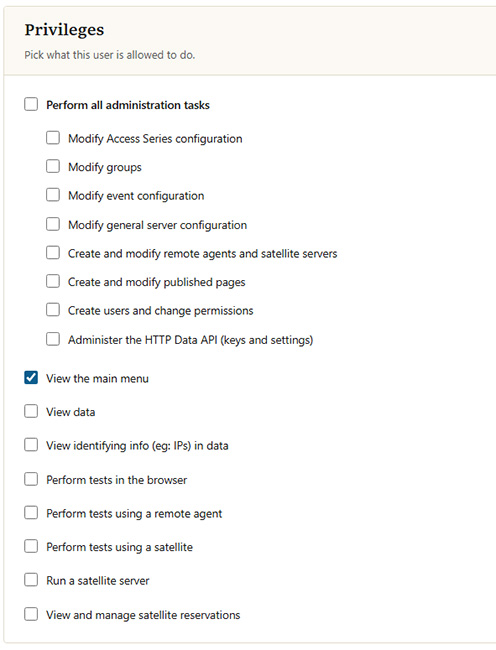
| Privilege | Description |
|---|---|
| Perform all administration tasks | Full administrative access to all system functions and settings |
| Modify Access Series configuration | Ability to configure and modify Access Series settings and parameters |
| Modify groups | Ability to configure and modify Satellite groups |
| Modify event configuration | Permission to create, edit, and configure system events and triggers |
| Modify general server configuration | Access to modify core server settings and general configuration options |
| Create and modify remote agents and satellite servers | Ability to set up, configure, and manage remote monitoring agents and satellite servers |
| Create and modify published pages | Permission to create, edit, and publish web pages and content within the system |
| Create users and change permissions | Administrative rights to create user accounts and modify user access permissions |
| Administer the HTTP Data API (keys and settings) | Create and manage HTTP data API keys and related settings. |
| View the main menu | Basic access to view and navigate the main system menu interface |
| View data | Permission to access and view system data and monitoring information |
| View identifying info (eg: IPs) in data | Access to view sensitive identifying information such as IP addresses in system data |
| Perform tests in the browser | Ability to execute and run tests directly through the web browser interface |
| Perform tests using a remote agent | Permission to initiate and run tests through remote monitoring agents |
| Perform tests using a satellite | Access to execute tests via satellite server infrastructure |
| Run a satellite server | Administrative permission to operate and manage satellite server instances |
| View and Manage Satellite Reservations | Access to view, create, modify, and manage satellite server reservations and scheduling |
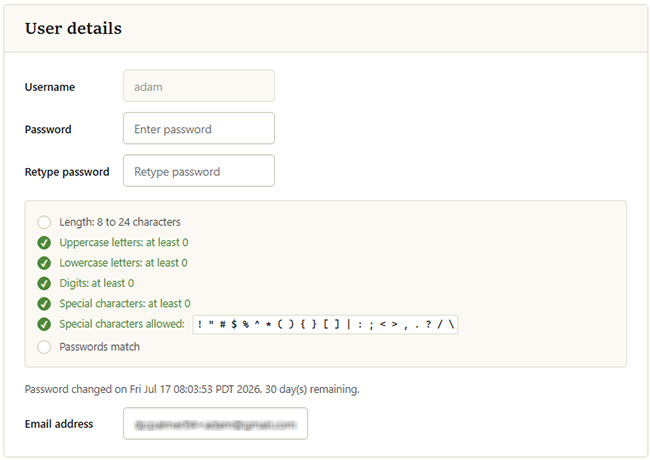
Confirm
The final step in adding or modifying a user is to enter the administrator password. This should be the password of the user highlighted in green.