
Download Contact Sales
Tutorial

Change an NCS File Directory

Update the file directory location for Access and NQC satellites to control where test files are stored.

Satellites Tab

Click the Satellites menu item.
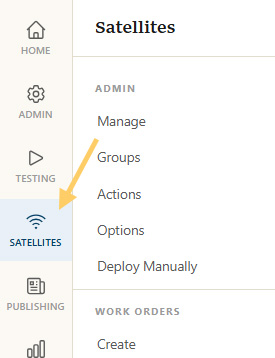
Satellites menu item

Check & Advanced

There are two ways to get to the advanced settings for a satellite.

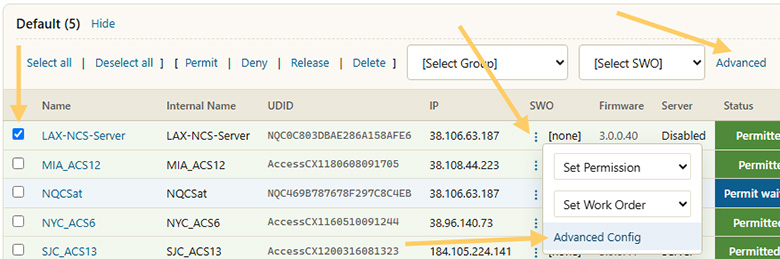
The first is to check the box next to the satellite that needs updating and then click the Advanced link. To change multiple satellites at once just check more boxes.

The second is to click the three dots icon in the SWO column and choose Advanced Config from the menu.

Satellite advanced options
Select satellites and click Advanced

Change File Directory

Scroll down to the bottom of the Advanced page and check the Change Satellite File Directory checkbox.

Select the directory of choice for both Access and NQC. Click the Apply Changes button to confirm the change. To create a new directory, choose new from the drop down list box and then enter a new name for the directory before saving the page.

Note: If only Access Devices were checked in the previous step, the NQC dropdown menu will not appear, and vice versa. Changes can take between 3 and 5 minutes to take effect.
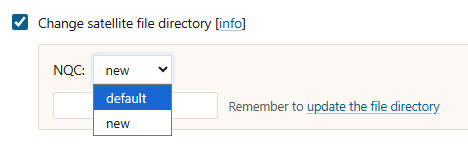
Change file directory options
File directory selection options