

Supported SQL Databases
MCS supports the following SQL databases: MySQL, MS SQL, and PostgreSQL. PostgreSQL is supported from MCS version 11.3f onward.
Each database type needs its JDBC driver installed in MCS before you can export to it. The MySQL and PostgreSQL drivers are bundled with MCS and installed automatically the first time the server boots, so for those two databases there is usually nothing to do. The Microsoft SQL Server driver is not bundled and must be added manually, as described further down.
Checking installed drivers
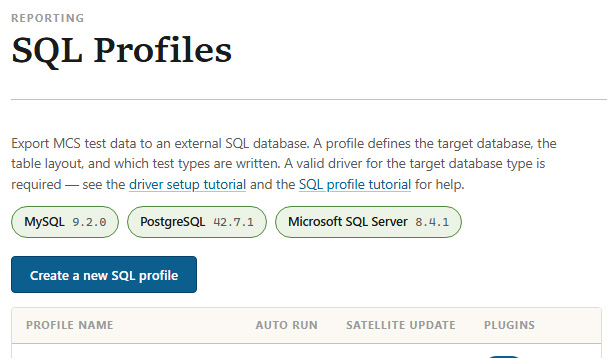
To see which drivers MCS has detected, open SQL Profiles from the Reporting menu. The version of each installed driver is shown at the top of the page. A version badge means that driver is loaded and ready to use.
Manually installing or updating a driver
You only need these steps to add the Microsoft SQL Server driver, or to update a bundled driver to a newer version. The official driver downloads are:
After downloading, locate the driver's JAR file and copy it to the ext directory at the root of the MCS installation folder. Restart MCS so the driver is loaded; it then appears with its version on the SQL Profiles page.
Create a SQL Profile
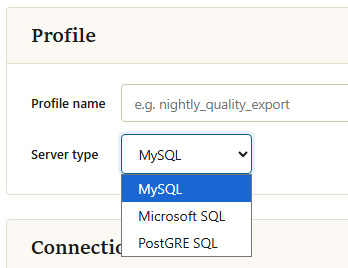
Next, create a SQL profile using the installed driver.
Troubleshooting SQL Exports
If the SQL profile has been configured but data exports are not occurring, review the MCS logs for details.
The logs are located in the logs directory within the root MCS installation folder. SQL-specific log files begin with sql and will document any issues encountered during export.