

How it works
The access control list (ACL) restricts who can reach MyConnection Server (MCS), either the whole server or specific sections, based on the client IP address and the URL being requested. Each entry either permits or denies a combination of source IP and target URL.
Rules are evaluated from the top down and the first matching entry wins, so order matters. If a request matches no rule, it is permitted by default and is then still subject to the normal MCS user roles and sign-in requirements.
Warning: A broad
The rule list
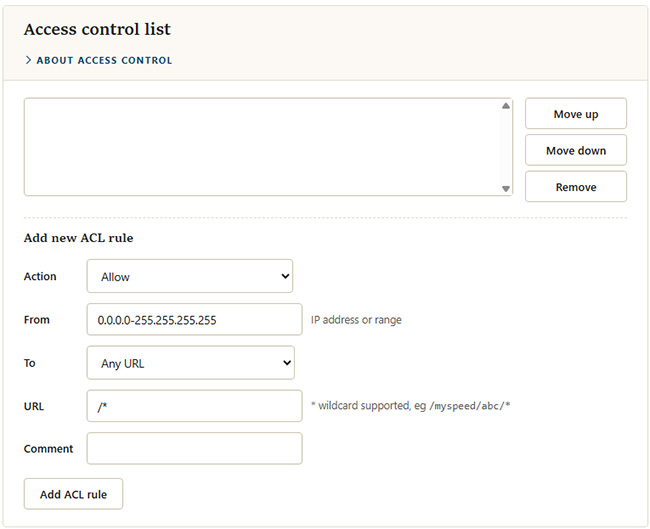
Existing rules appear in the list at the top of the section. Because the first match wins, use
Adding a rule
Complete the
| Field | Description |
|---|---|
| Action | What to do when the rule matches:
|
| From | The source IP address or range the rule applies to, for example a single address or 0.0.0.0-255.255.255.255 for all addresses. |
| To | Which part of MCS the rule covers: Any URL, Administration URLs, Database search / reporting URLs, or A specific URL. |
| URL | The target path when A specific URL is chosen. The * wildcard is supported, for example /myspeed/abc/*. |
| Comment | An optional label to remind you what the rule is for. |