

Overview
Reservations, introduced in MCS version 11.3g, are an extension of work orders that allow greater control over creation, distribution, management, and security.
Creating or Modifying a Reservation
Reservations are created and edited from
Modifying a reservation uses this same form. Opening an existing reservation for editing pre-fills every section with its current values, and the save button reads
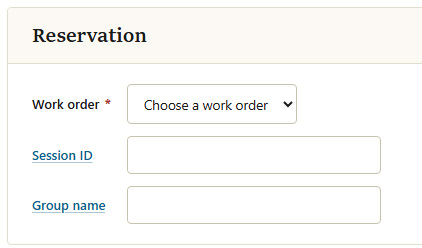
Reservation
| Field | Description |
|---|---|
| Work order | Required. Choose from a list of existing work orders. A work order defines the specification and frequency of the tests performed. |
| Session ID | Identifies results on the server side. By default, the session ID uses the satellite's unique ID (the machine it runs on), appearing as the third segment:
GroupName/WorkOrder/SatelliteID. If specified here, this value is used instead. It can also be overridden at the time of download.
|
| Group name | All satellites are assigned to a group. Defaults to the background group if not specified. If the group does not exist, it is created automatically. |
Limits
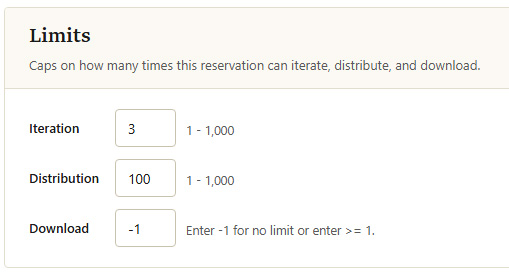
Caps on how many times this reservation can iterate, distribute, and download.
| Field | Description |
|---|---|
| Iteration | Default: 3. Maximum number of times the work order can be completed per client. Accepts a value from 1 to 1,000. |
| Distribution | Default: 100. Maximum number of unique clients the reservation can run on. Accepts a value from 1 to 1,000. |
| Download | Default: -1 (no limit). Maximum number of reservation downloads. Enter -1 for no limit, or a value of 1 or more. |
Time restrictions
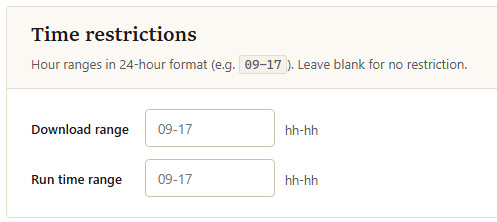
Restrict downloading or running to a window of the day. Enter hour ranges in 24-hour format (e.g. 09-17 for 9 am to 5 pm). Leave blank for no restriction. Ranges are based on the MCS database timezone.
| Field | Description |
|---|---|
| Download range | The hours of the day during which the reservation may be downloaded. |
| Run time range | The hours of the day during which the reservation may run. |
IP restrictions
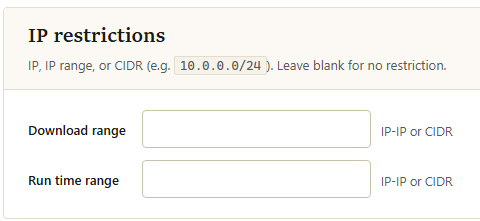
Restrict downloading or running to a specific IP, IP range, or CIDR block (e.g. 10.0.0.0/24). Leave blank for no restriction. Only clients with an allowed IP can perform the corresponding action.
| Field | Description |
|---|---|
| Download range | The IP, IP range, or CIDR permitted to download the reservation. |
| Run time range | The IP, IP range, or CIDR permitted to run the reservation. |
Filename override
Override the default satellite filenames for this reservation. Leave a field blank to use the server-wide default filename.
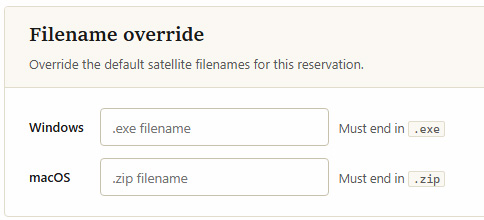
| Field | Description |
|---|---|
| Windows | Custom filename for the downloaded Windows satellite. Must end in .exe. |
| macOS | Custom filename for the downloaded macOS satellite. Must end in .zip. |
Further settings
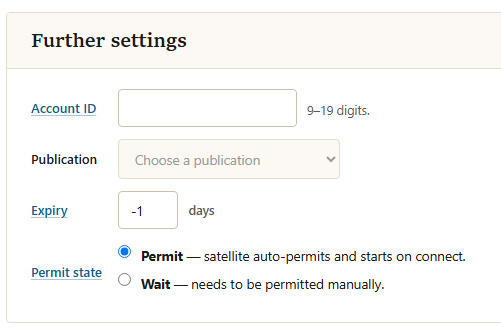
| Field | Description |
|---|---|
| Account ID | A 9 to 19 digit account ID. Specifying one makes it the primary account for the group, and all reservation results are tagged with this ID, enabling data access restrictions (e.g. users only see data matching their account ID). |
| Publication | Currently unused. Choose a report to publish once the reservation completes the work order. |
| Expiry | Default: -1 (no expiry). Number of days until the reservation expires. After expiry, download and run attempts are rejected. |
| Permit state | Default: Permit. Permit means the satellite auto-permits and starts work on connection. Wait means the satellite must be permitted manually before it starts. |
Managing Reservations
Existing reservations are viewed and maintained from
Search
Use the search fields to find reservations. To list every reservation, enter an asterisk (*) in any field and click
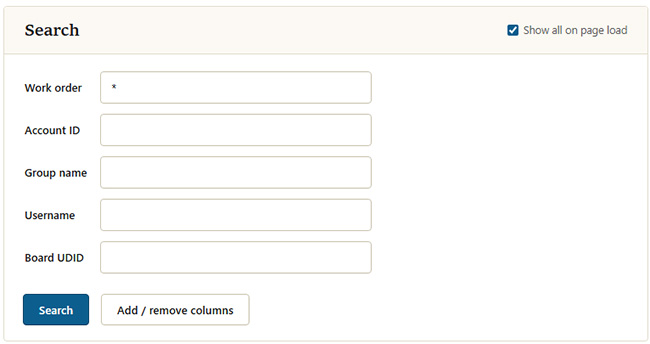
Reservations can be searched by Work order, Account ID, Group name, Username (the user who created the reservation), and Board UDID. The following rules apply:
- Wildcard. Enter
*in any field to match anything in that field. - Multiple fields are AND. Filling in more than one field returns only reservations matching all the criteria.
- Partial matches. Results include the entered text, so
part*,*part, and*part*all work. - Show all on page load. Tick this checkbox in the Search header to list every reservation automatically when the page opens. The choice persists across visits.
- Add / remove columns. Choose which columns the results table shows. Hover the information icon on any column header for a description of that column.
Results
Matching reservations are listed in the results table. The leading Actions column lets you edit (which opens the same form used to create a reservation), delete, or download a reservation. Every other column can be shown or hidden with
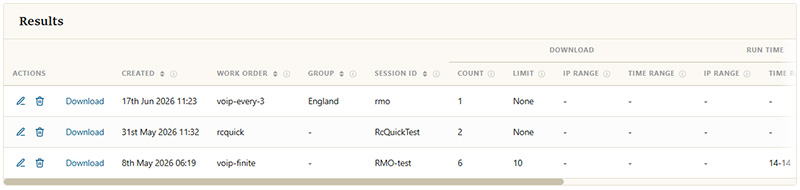
| Column | Description |
|---|---|
| Actions | Edit, delete, or download the reservation. |
| Created | The date the reservation was created, in the MCS database timezone. |
| Modified | The date the reservation was last modified, in the database timezone. |
| Last Used | The date the reservation was last used, for example when it was downloaded or a test was run against it, in the database timezone. |
| Work Order | The work order assigned to the reservation. |
| Group | The group assigned to the reservation. If the group does not exist when the reservation is run, it is created. |
| Session ID | The session identifier used to help identify results in the database. |
| User | The username that was logged on when the reservation was created. |
| Account | The account ID assigned to the group as its primary group ID. Setting it overrides existing group accounts and removes assigned sub-accounts. |
| Download: Count | The number of times the reservation has been downloaded. |
| Download: Limit | The number of times the reservation can be downloaded, including repeat downloads from the same workstation. |
| Download: IP Range | The IP address or range permitted to download the reservation. |
| Download: Time Range | The time range during which the reservation can be downloaded, in the database timezone. |
| Run Time: IP Range | The IP address or range permitted to run the reservation. |
| Run Time: Time Range | The time range during which the reservation can be run, in the database timezone. |
| Limit: Iteration | How many times a single workstation can run the reservation. |
| Limit: Distribution | The number on the left is how many unique workstations have run the reservation; the number on the right is how many are allowed to. See Distribution detail below. |
| Auto Permit | Permit means the reservation begins work automatically when connected to MCS. Wait means the satellite awaits manual permission. |
| Expiry | How many days remain before the reservation expires. On expiry it auto-deletes, and satellites set to run it will fail to do so. |
Distribution detail
The Distribution column shows usage as run / allowed, for example 1 / 100. When at least one workstation has run the reservation, the value becomes a link. Clicking it opens a breakdown of how many iterations each device has performed. If a device reaches its iteration limit, its entry is highlighted.
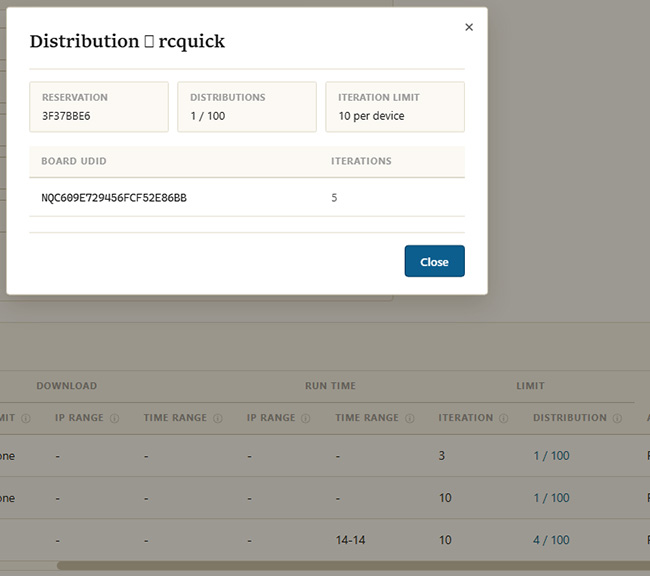
The popup lists the reservation key, the distribution count, the per-device iteration limit, and a row per Board UDID showing how many iterations that device has completed.
Downloading and sharing a reservation
Clicking
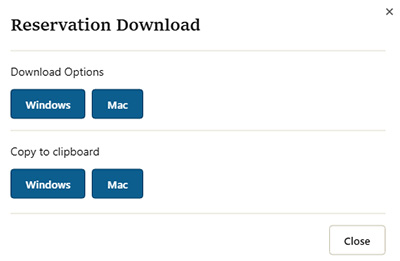
- Download Options.
Windows orMac downloads the satellite for that platform directly. - Copy to clipboard.
Windows orMac copies the platform-specific download link so you can share it by email, cloud drive, or another channel.
Note: The download count only increases when the direct download link is used. Rely on the distribution limit to cap usage when sharing by other methods.
The download link takes the form below. The a and k parameters are required; the download fails if either is missing or mismatched.
https://yourmcs.com/myspeed/dstl?a=workorder&k=1111111&t=win| Key | Description |
|---|---|
a |
Required. Work order name. Must match the reservation's work order. |
k |
Required. Reservation key. |
t |
Platform of the satellite to download: win or mac. Added automatically by the download options above. |
u |
Optional. Overrides the session ID at download time. Useful when distributing to many users who each need a unique identifier (e.g. u=miami). |
API for Reservation Creation
Reservations can be created without directly accessing MCS, allowing integration into other applications. Since creating a reservation requires sufficient privileges, an automatic login must be set in MCS for the application's IP.
The only required parameter is a work order name — everything else uses default values unless specified. For descriptions of each setting, refer to the creation table above.
| Field | Key | Example |
|---|---|---|
| Work Order | swo |
swo=voiptest (required) |
| Session ID | rsn |
rsn=newyork |
| Group Name | grp |
grp=datacenter |
| Iteration Limit | itl |
itl=3 |
| Distribution Limit | dtl |
dtl=10 |
| Download Limit | dll |
dll=1000 |
| Download Time Range | dti |
dti=09-17 |
| Run Time Range | rti |
rti=09-17 |
| IP Download Range | dir |
dir=3.4.5.6 |
| IP Run Range | rir |
rir=3.4.5.6 |
| Windows Filename | win |
win=mysatellite.exe |
| macOS Filename | mac |
mac=mysatellite.zip |
| Account ID | accid |
accid=123456789 |
| Publication Name | pun |
Currently unused. |
| Expiry | exp |
exp=14 |
| Permit State | sps |
sps=permit or sps=wait |
The target endpoint is /myspeed/admin/rmocreate. Full example:
https://your.mcs.com/myspeed/admin/rmocreate?swo=voiptest&rsn=sessionid&grp=nyc_groupOn success, the response contains the reservation key needed to distribute the reservation.