
Publish a Satellite Work Order
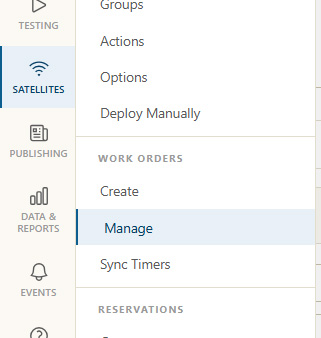
From the Satellites menu, click on
To publish a new work order, click the
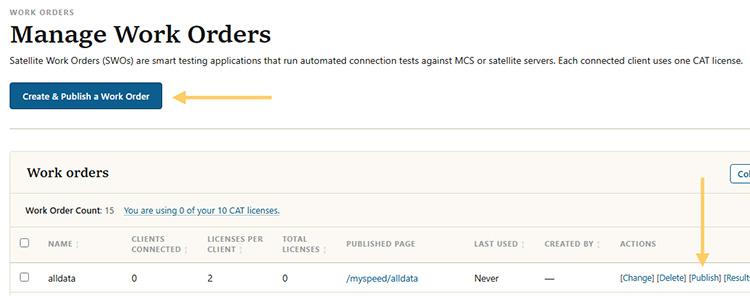
Clicking the
Clicking the
Published Page
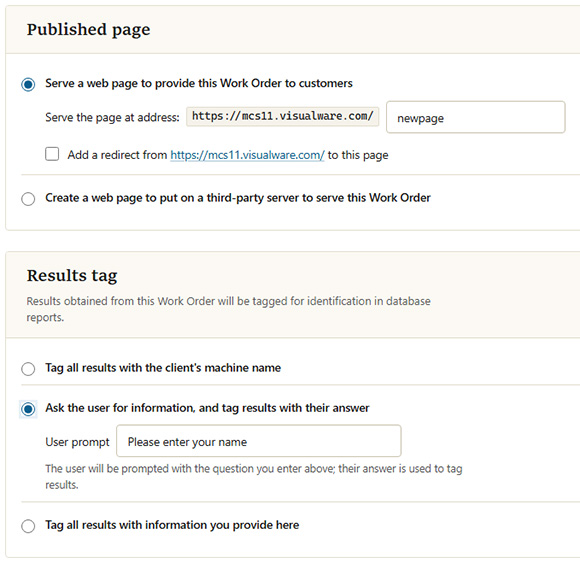
Server a web page: Specify name for the page that will be published to the /www/publish directory.
Add a redirect: To instruct MCS to redirect users to this page when they access the root URL check this box.
Create a third party web page: MCS will create a .zip file that contains all the files needed to present the page on a web server other than MCS.
Results tag
The results tag gets applied to the data as a session ID when reports are stored in the database. This makes it easier to locate the data at a future date.
Tag with machine name: The work order will pick up the machine name it's running on.
Ask for information: Specify a question to ask the user before they download. For example, "Please enter your name".
Tag all: Specify text to use for all results that run that specific work order.
Satellite Download Page
Once the SWO has been published, a page like the one below will appear.
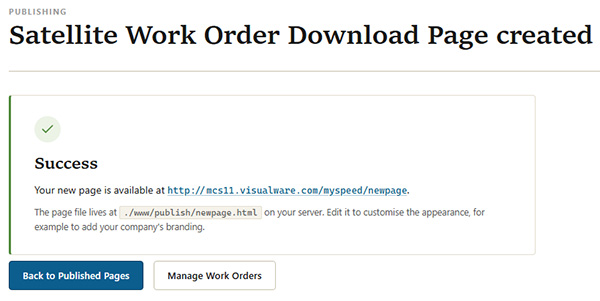
Clicking the link presents a SWO download page, which can be shared directly with the end user if needed.
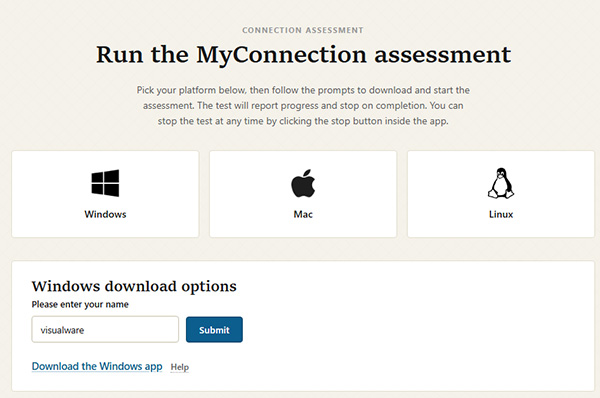
The image above shows what the user would see if the Windows button was clicked and the "ask user for information" option was chosen during publishing. The user must enter the information and submit before the download links are revealed.
Satellite Download
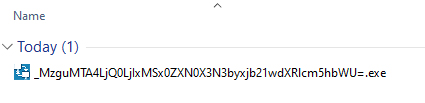
The downloaded satellite file will have a long name. The name contains all the information required to run the satellite, so it is important not to rename the file before running it.