

How it works
Two-step (two-factor) authentication adds a second check on top of the password. After a user signs in with their username and password, MyConnection Server (MCS) emails them a one-time passcode (OTP) that must be entered before access is granted. This verifies that the person signing in also controls the account's email address.
Step 1: Configure email
MCS needs a working mail server to deliver the code, so the
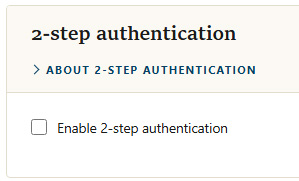
Step 2: Enable 2-step authentication
On the Security Settings page, tick
Note: Every user needs an email address on file to receive codes. Users without one are prompted to add an address the next time they sign in. Administrators can also set or update addresses under
What users experience
The next time a user signs in, MCS emails an OTP to the address held for that account. Once the correct code is entered, that computer is remembered for 30 days and will not prompt again during that window. The prompt returns when the 30 days elapse, or immediately if the user signs in from a different computer or browser.