

Overview
The calendar allows tokens to be assigned to dates and times for use with report publications and satellite work orders.
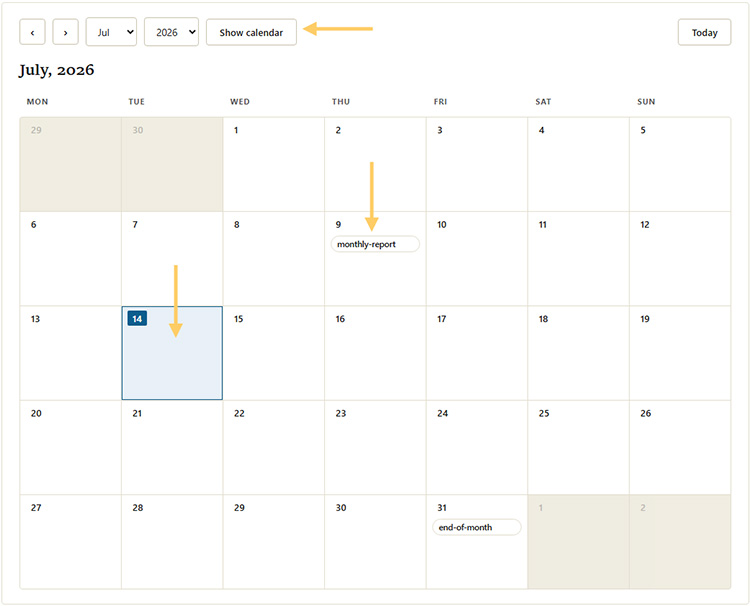
The calendar will, by default, appear on the current month. The month and year can be changed using the drop down list boxes at the top of the calendar view.
Existing tokens will appear on the date they are assigned.
The current day will be highlighted in blue.
Add a Token
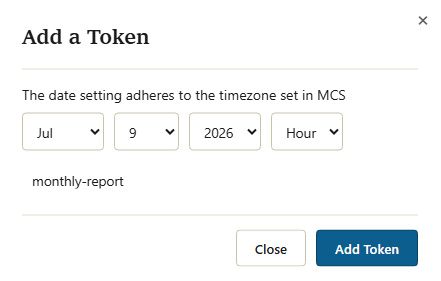
To add a token, click the date — a popup will appear with the date selected. Enter a name for the token and click
To add a token for a specific hour, select it from the "hour" drop-down menu.
Wildcard date entries are allowed to make adding the same token to multiple dates easier. For example, selecting ** for day, ** for month, and 2020 for year will add the token to every day for the entire year.
Delete a Token
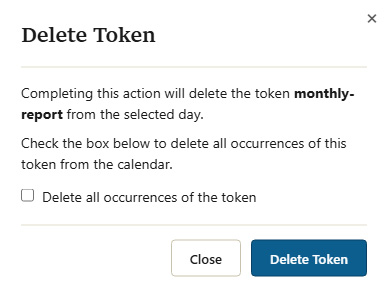
To delete a token, click on it in the calendar. A popup will appear. Click
Since the same token can exist on more than one date, you must choose to delete all instances across the calendar or just the instance for that day.