

Overview
An action is a small set of instructions that MyConnection Server (MCS) runs automatically when a work order or browser test completes. An action can currently do one of two things: publish a report, or set a condition that other parts of MCS can react to.
Finding actions
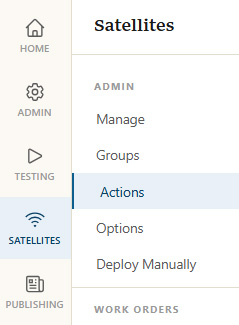
Actions are managed from the Satellites area of MCS. Select
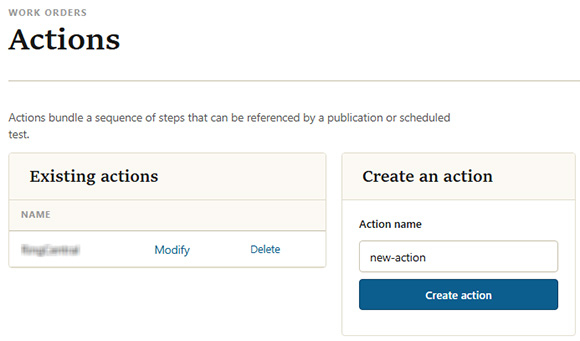
The actions list shows the actions already defined (see Manage Actions for more detail). To create a new action, enter a name under
The action screen
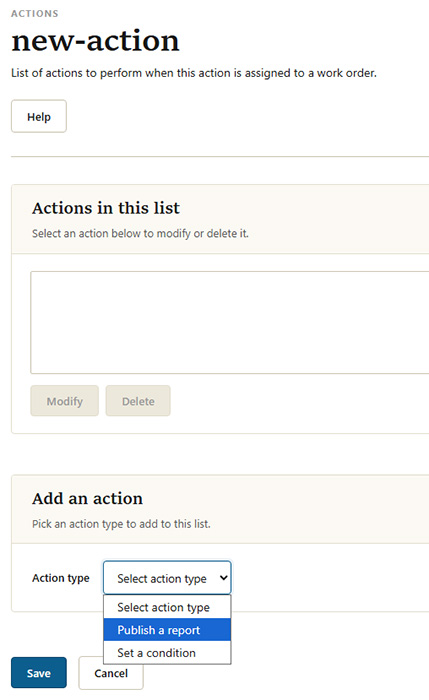
Creating a new action and modifying an existing one use the same screen. The action's name is shown as the page title, and the screen is split into a panel listing the actions already defined and a panel for adding a new one.
| Element | Description |
|---|---|
| Action name | Shown as the page title. It is set when the action is first created and is the name used to reference the action throughout MCS. |
| Help | Opens this user guide page. |
| Existing actions | The panel listing the actions already added. Select an action, then click |
| Add an action | Choose an |
| Save / Cancel |
Adding an action
In the
Publish a report
Publishes a report when the action runs. The report and publication options match those used elsewhere in MCS, so they are covered in the publishing section of the user guide.
Set a condition
Setting a condition as part of an action makes that condition true when the action runs. Conditions can then drive other behavior. For example, a report can be set to publish only when a given condition is true.
Enter one or more condition names, using a comma to separate multiple conditions, then click
endofmonth,decemberPrefix a condition with an exclamation mark (!) to remove it instead of setting it. When the action runs, !name deletes the condition name if it exists, in effect making it false. For example:
endofmonth,!lastmonthThis sets the endofmonth condition and removes lastmonth if it is present.
You can review the conditions currently set from the Manage Conditions page, also reachable from the
Note: Adding an action to the list does not save it. Click