
Menu Click
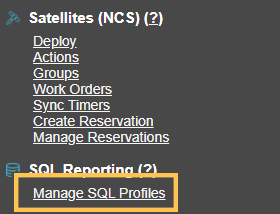
Click Manage SQL Profiles in the MCS administration menu.
Create Button
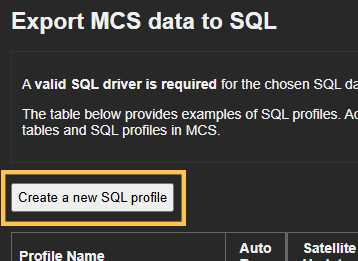
Click Create a new SQL profile.
Configure the Profile
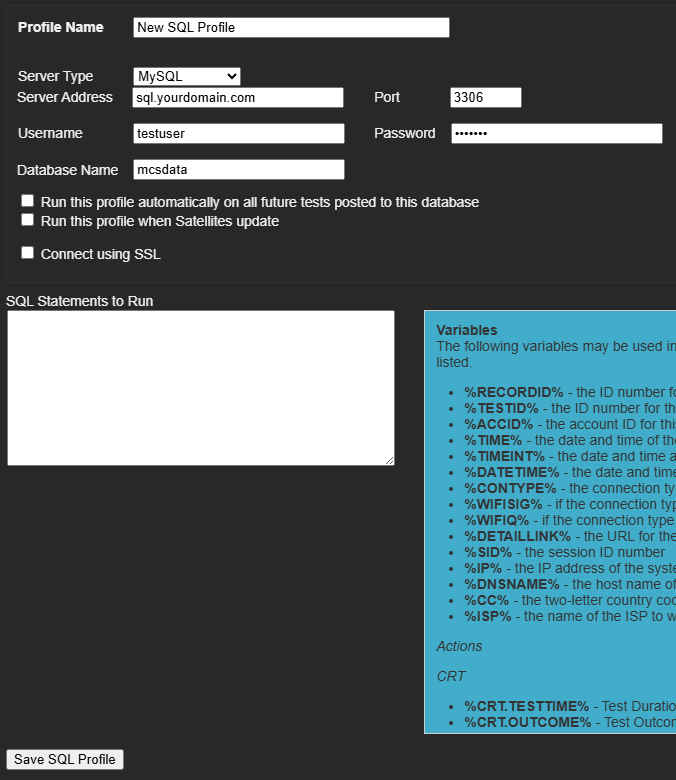
The configuration for a SQL profile is shown below.
| Setting | Description |
|---|---|
| Profile Name | A unique and descriptive name to identify the SQL profile. |
| Server Type | The type of SQL database (MySQL, MS SQL, PostgreSQL) associated with this profile. |
| Server Address | The IP address or domain name of the SQL database server. |
| Port | The network port number where the SQL database is accessible. |
| Username | The username authorized to access the SQL database. |
| Password | The password associated with the specified username. |
| Database Name | The specific name of the database to be used for data storage and retrieval. |
| Auto Run | If selected, this profile automatically activates whenever new data arrives in MCS. However, data will only export if it matches the criteria defined in the SQL statements. For example, if the profile is set up to export VoIP data but speed test data arrives, the profile will trigger, but no data will be exported. Events can also trigger SQL profile exports, not just incoming data. |
| Satellite Update | If checked, the SQL profile activates whenever a Satellite device checks in with MCS, allowing satellite data to be exported. |
| SSL | These options change depending on the flavor of SQL selected in the Server Type dropdown. |
| SQL Statements | Specify the INSERT INTO statements for exporting data to the SQL database. Examples of proper syntax are provided on this page in the highlighted blue box and within other tutorials accessible from the menu on the left. |
MySQL Specific Configuration Options
When Connect using SSL is checked, the options below will appear.
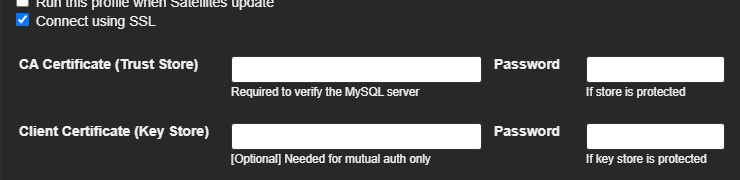
To use SSL with MySQL, a Certificate Authority (CA) certificate is required to validate the server, and optionally a Client Certificate if the MySQL server requires client authentication.
Certificate Authority (CA) Certificate
This certificate is used to verify the identity of the MySQL server, ensuring that the client is connecting to a trusted server.
The MySQL server should be configured with a server certificate signed by this CA.
A Java keystore containing this CA certificate must be provided.
Client Certificate (Optional)
This certificate is used to authenticate the client (MyConnection Server) to the MySQL server.
Whether a client certificate is required depends on the MySQL server's require_secure_transport and user-specific SSL settings (e.g., REQUIRE X509).
If required, a separate keystore containing the client certificate and its private key must be provided.
Microsoft (MS) SQL Specific Configuration Options
If Use Windows Authentication instead of the username/password above (Trusted Connection) is enabled, the software will connect to the SQL Server using the Windows account currently running the application or service.
This means it will ignore any username and password entered above and instead rely on the operating system's built-in authentication.
For this to work, the SQL Server instance must be configured to allow Windows Authentication, and the Windows user must have the necessary permissions to access the specified database.

There are important MCS version specific instructions for MS SQL drivers. Please review these when deciding which driver to use. Driver installation is discussed in this tutorial.
PostgreSQL Specific Configuration Options
The settings shown below are explained in the user guide.