

Download the EXE
From the MCS main menu, click Deploy.
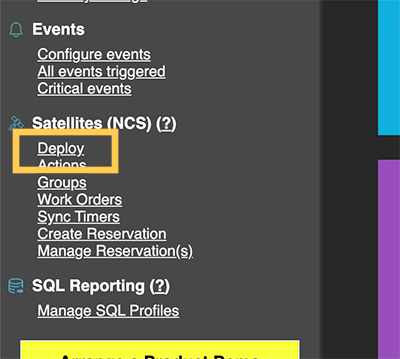
Deploy link
Click the Download for Windows (Command Line) link under Client Options. This will download a file named nqcs.exe.
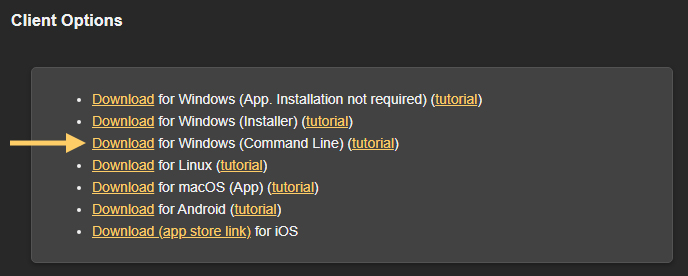
Windows command line EXE download
Command Line Options
From the command line, type nqcs ? to view the latest available options.
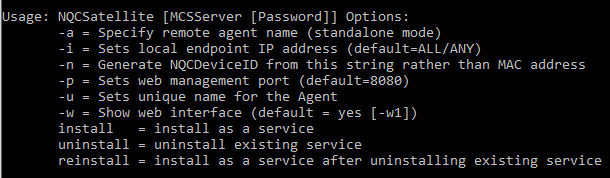
Command line options
The example below demonstrates how to install the Satellite as a service and connect it to MCS. In this case, the Satellite will connect to the server at 4.16.214.18 on port 80. (Port 80 is used here for demonstration purposes—only non-80 ports need to be explicitly specified.) The Satellite will register in MCS under the unique name NQCSat.
nqcs 4.16.214.18:80 -uNQCSat installOnce installed, the Satellite will appear in the MCS Satellite list as shown below.

Satellite list