

Alert Type
The first step is to choose the alert type from the drop-down menu. This involves choosing the level of alert (Informational, Warning, or Critical) and when to trigger the alert.
In this example we want to create an alert when a satellite fails to connect to MCS in a timely manner, implying it has gone down and needs hands-on assistance.
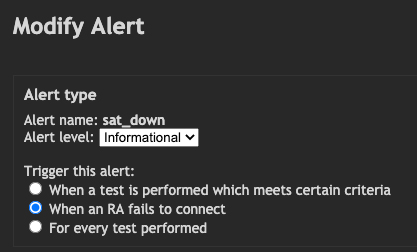
Ensure that the
Conditions
The next step is to set any conditions or exceptions for the alert. For this alert type the options are to choose a specific satellite name and whether to suppress the alert if it occurs again within a certain period of time.
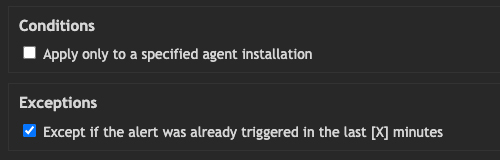
A single satellite can be deployed to numerous clients, so the name condition allows you to specify satellite names if the alert is only required for one specific instance.
The alert exception allows you to suppress alerts if triggered within X minutes of the last trigger. For example, having an email sent once an hour for a satellite that has gone down may be more manageable than one sent every minute.
When checking these options the actual settings appear in the bottom part of the page, explained below.
Alert Actions and Parameters
In this example we're going to set the alert to send an email.
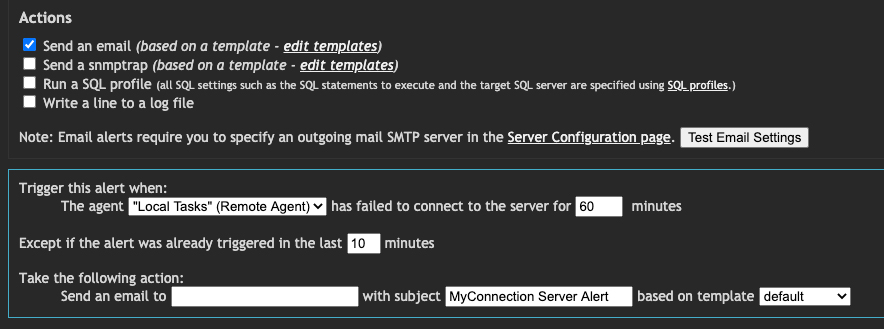
Check the
Also available for selection is the name of the satellite to monitor and a downtime setting in minutes. Since the "suppress alert" option was checked, there is also a time setting for suppression of the alert if triggered multiple times.
When all the settings have been filled in, click the
Need help? If the alert is not working as expected, please contact support.