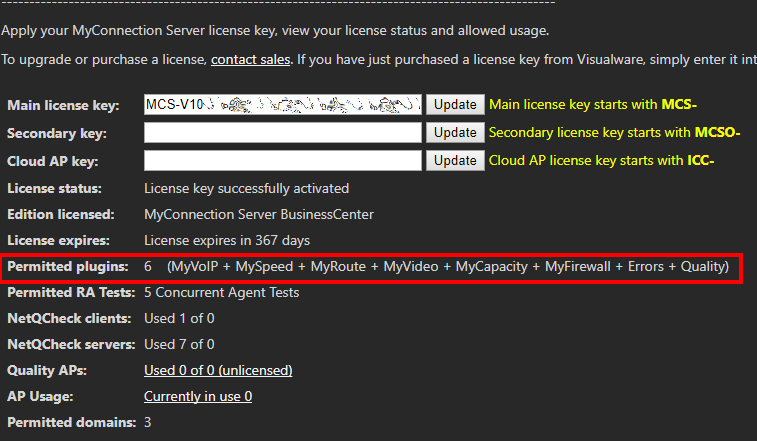

A license key will have been sent to the email address provided when purchasing MCS. This license key has to be applied to MCS.
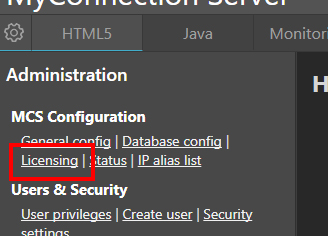
Go to Licensing
Click the
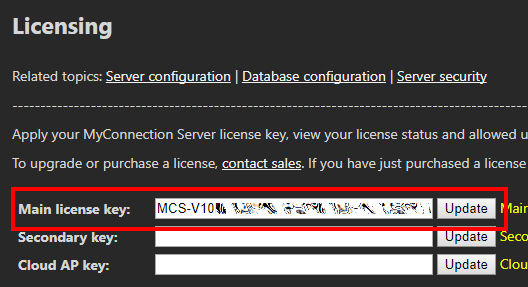
Copy the Key
Copy and paste the license key from the Visualware confirmation email into the
For keys starting with "MCSO" (secondary keys), paste them into the
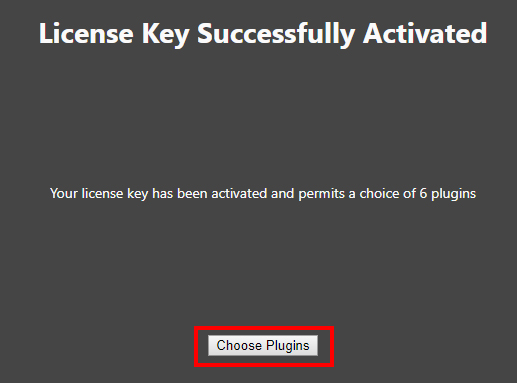
Choose Plugins
Some license keys don't allow all plugins. When this is the case a
The number of allowed plugins is shown at the top of the page. Select the plugins by checking the boxes, then click the
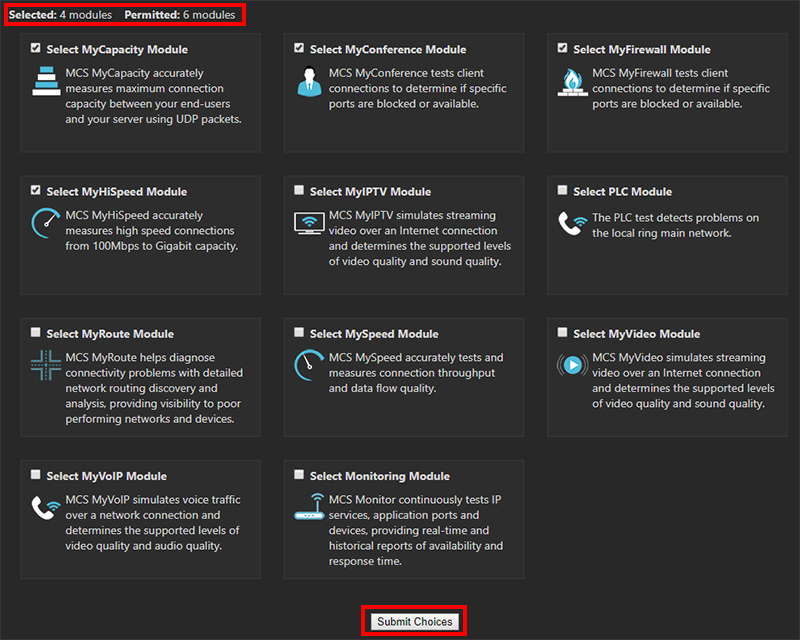
Verify Plugins
After submitting your plugin choices, the license screen will display which plugins have been enabled. Verify that these match your selections.
Additionally, some standard plugins are automatically included and will be listed as well.