
Overview
The calendar allows tokens to be assigned to dates and times for use with report publications and satellite work orders.
Choose a Month
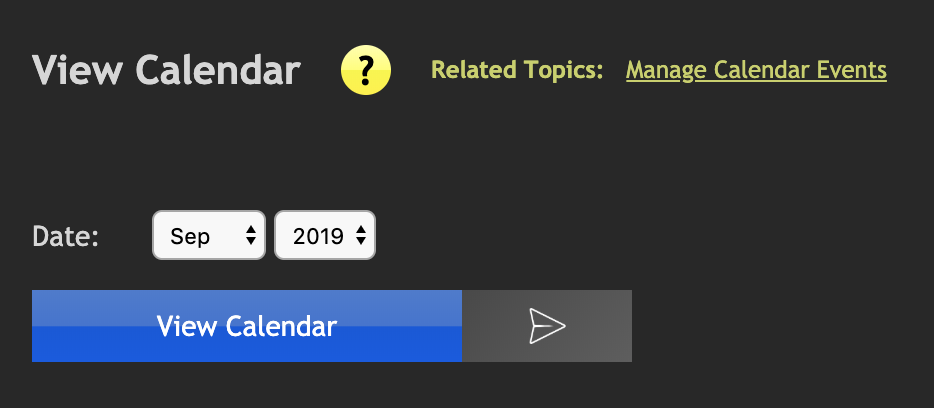
The calendar defaults to the current month when the page first loads. To choose another month, select the month and year from the drop-down menu and click the
Add a Token
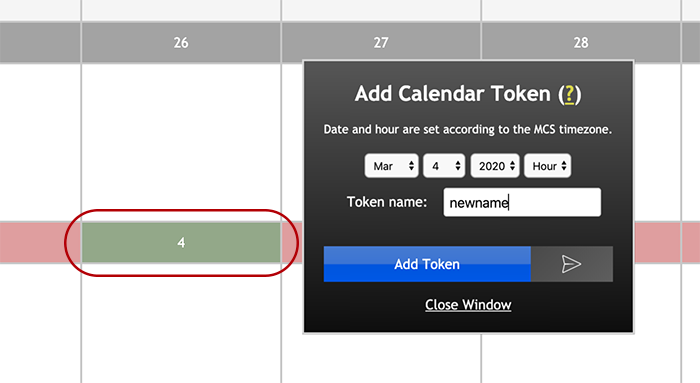
To add a token, click the date — a popup will appear with the date selected. Enter a name for the token and click
To add a token for a specific hour, select it from the "hour" drop-down menu.
Wildcard date entries are allowed to make adding the same token to multiple dates easier. For example, selecting ** for day, ** for month, and 2020 for year will add the token to every day for the entire year.
Delete a Token
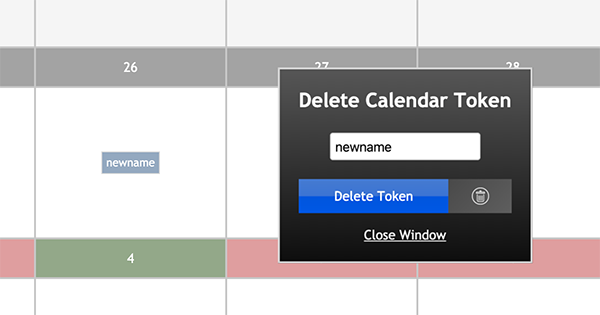
To delete a token, click on it in the calendar. A popup will appear with the token pre-filled. Click
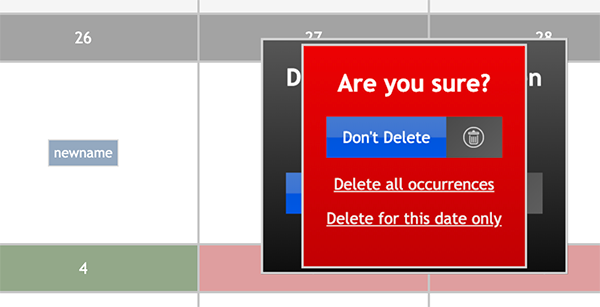
A confirmation dialog will appear to avoid accidental deletion. Since the same token can exist on more than one date, you must choose to delete all instances across the calendar or just the instance for that day.