

Action Screen
An action can be triggered either at the end of a work order or at the end of a browser test. Actions can currently be used to publish a report or set a condition within MCS.
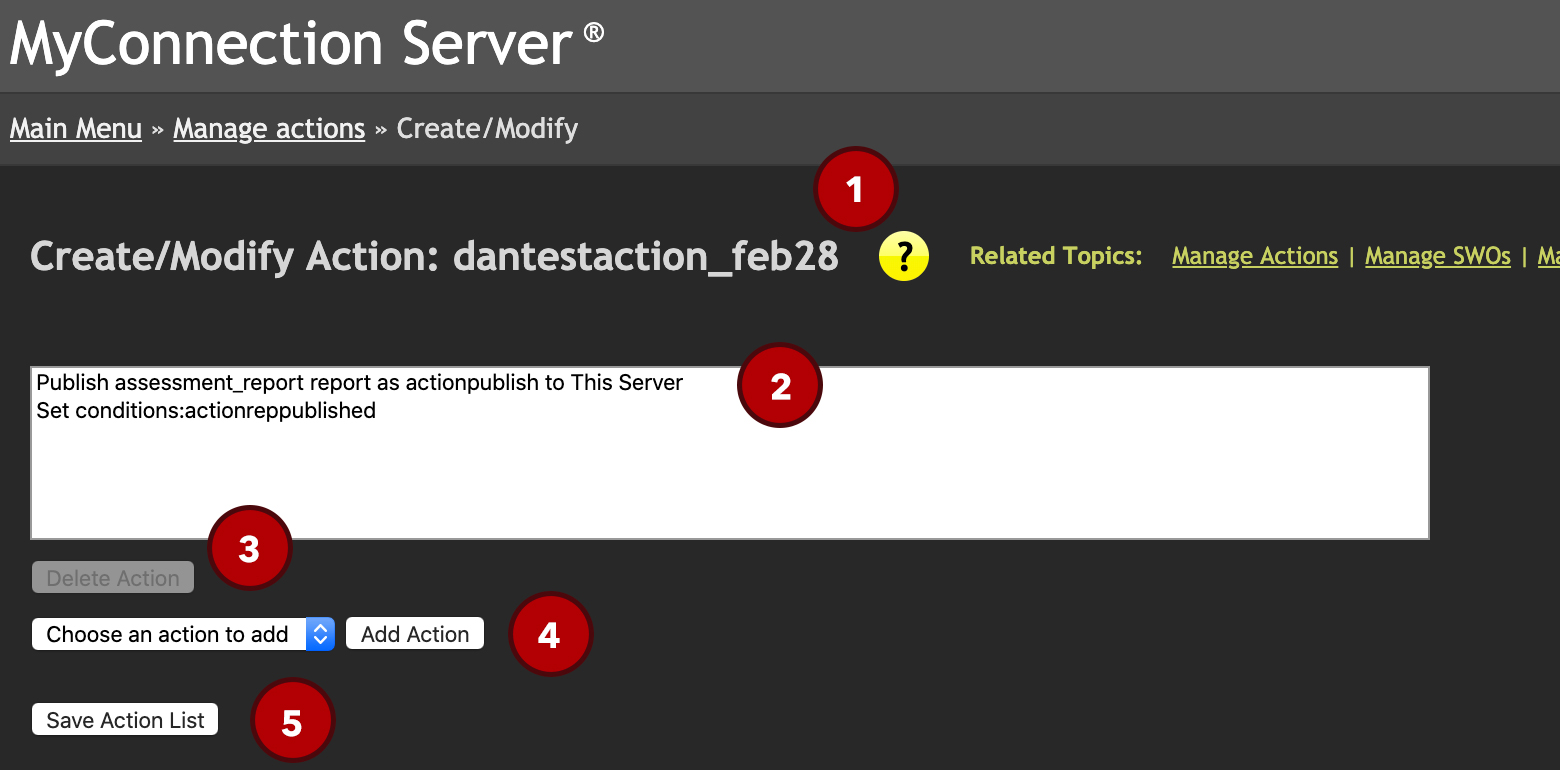
Create and modify an action
| # | Element | Description |
|---|---|---|
| 1 | Action name | The name defined for this list of actions. This is the name that will appear in MCS to reference this action. |
| 2 | Action list | Each action added to the list will appear here, showing details about each action. |
| 3 | Delete action | Select the desired action and click this button to remove it. Changes won't take effect until the list is saved (5). |
| 4 | Add an action | Choose an action from the drop-down list. The details required for the chosen action will appear below. The action will not be added to the list until the |
| 5 | Save action | Saves the action list to MCS. You'll then return to the page you were previously on. |
Add an Action
The two action options are:
Run a Report
The options for running a report are covered in the publishing section of the user guide.
Set a Condition
The set a condition field takes a comma-delimited string of conditions. To mark a condition as negative, prefix it with an exclamation mark. For example:
workorderend,!workordernotfinishedThis would create a condition called workorderend that will be set to true. If a condition called workordernotfinished exists, it will be removed — in essence making it false.