
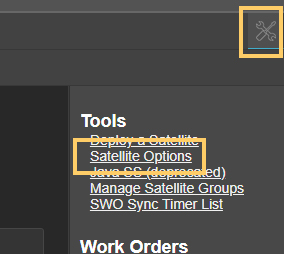
From the main menu, click on the "Satellite" tab. Ensure the tools menu is open by clicking the icon in the top right corner. Then, click the "Satellite Options" link as shown below.
The resulting page has three sections, shown below.
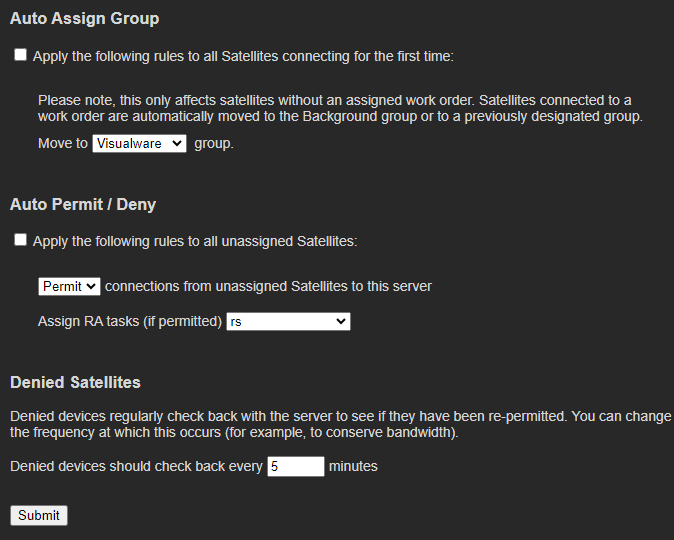
By default, new satellites that connect to MCS are placed in a group called "Default." This group serves as a temporary holding area for satellites that have not yet been categorized into user-created groups. Enabling this feature will automatically move satellites from the "Default" group to a group of the user's choosing.
To enable this feature, first check the box and then select a group from the drop-down list. If no groups appear in the list, you need to create a new group first.
When finished, click the "Submit" button at the bottom of the page.
Satellites that connect to MCS for the first time without an assigned work order will appear in a group called "Default" and will be in a state called "Awaiting Permission." This means the satellite cannot perform any tasks until permission is granted, usually by an MCS administrator.
Enabling this feature allows MCS to automatically permit or deny a satellite upon its first connection and, if necessary, assign an existing work order to it.
To enable the feature, first check the box. Then, choose "Permit" or "Deny" from the drop-down list. If needed, select a task (work order) from the drop-down list as well. If a work order is not required, simply choose "Unassign Tasks."
Satellites communicate with MCS every minute by default. However, if a satellite has been deleted or denied, MCS increases this interval to 5 minutes by default.
You can change this setting here by increasing or decreasing the default interval of 5 minutes.
Click the "Submit" button to confirm the change.